
Pori User Guide
This guide covers normal day-to-day use of Pori.
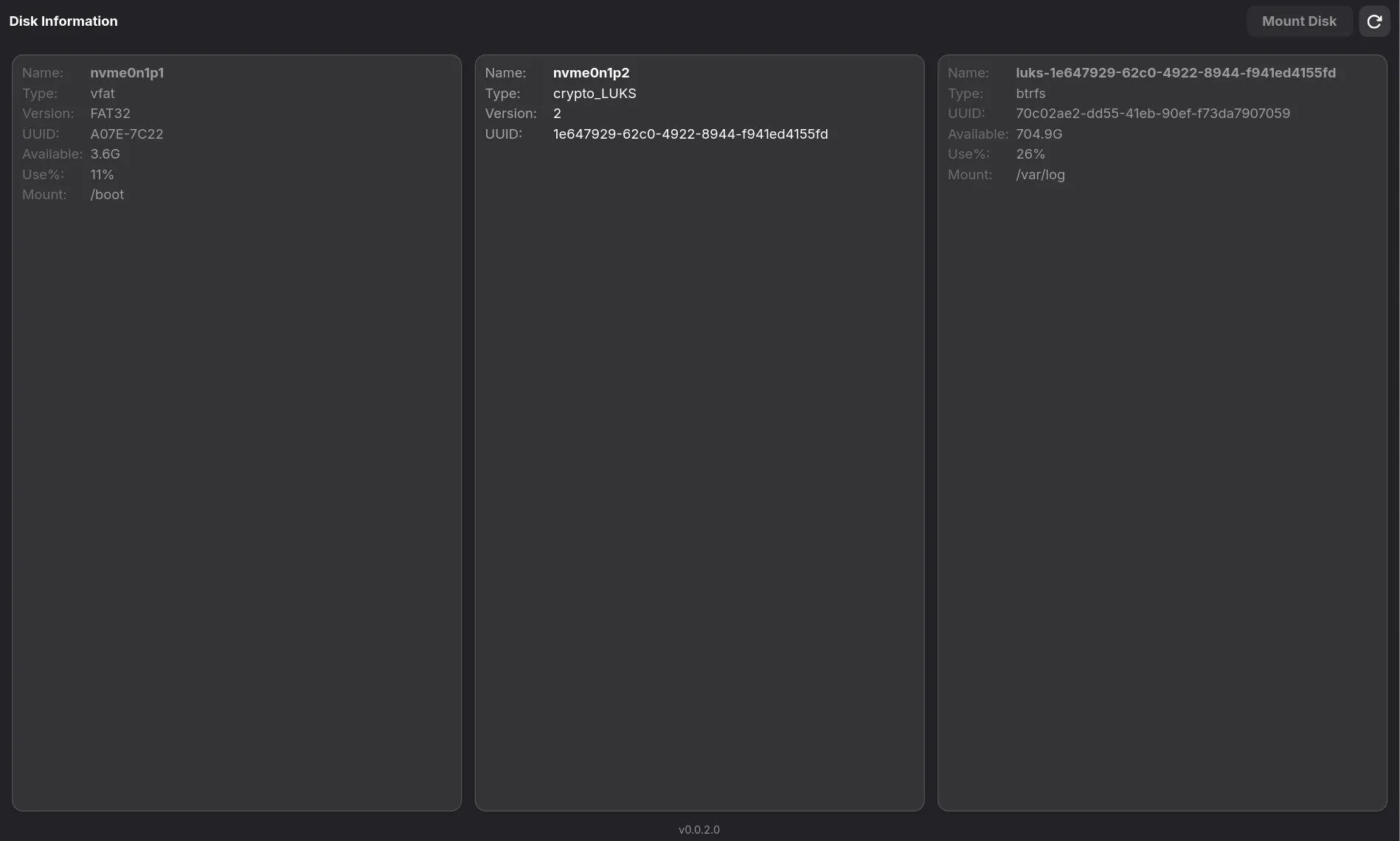
Before You Start
Section titled “Before You Start”| Requirement | How to Verify | What to Look For |
|---|---|---|
| Sudo access | groups command |
Your username appears in sudo or wheel group |
| Disk healthy state | sudo fsck -n /dev/sdXn |
No “dirty bit” or error messages (run on unmounted disk) |
| Disk visible to system | lsblk -f |
Your device appears in the list with filesystem type (ext4, ntfs, etc.) |
| Mount point parent exists | ls -la /mnt or your chosen path |
Parent directory exists (Pori creates the final mount point, but not the full path) |
Mount a Disk
Section titled “Mount a Disk”- Open Pori.
- Select a drive that is not already mounted.
- Click Mount Disk.
- In the dialog:
- Confirm or edit the mount point.
- (Optional) add a description.
- Keep or adjust recommended mount options.
- (Optional) add extra comma-separated options.
- Click Mount.
- Authenticate when prompted.
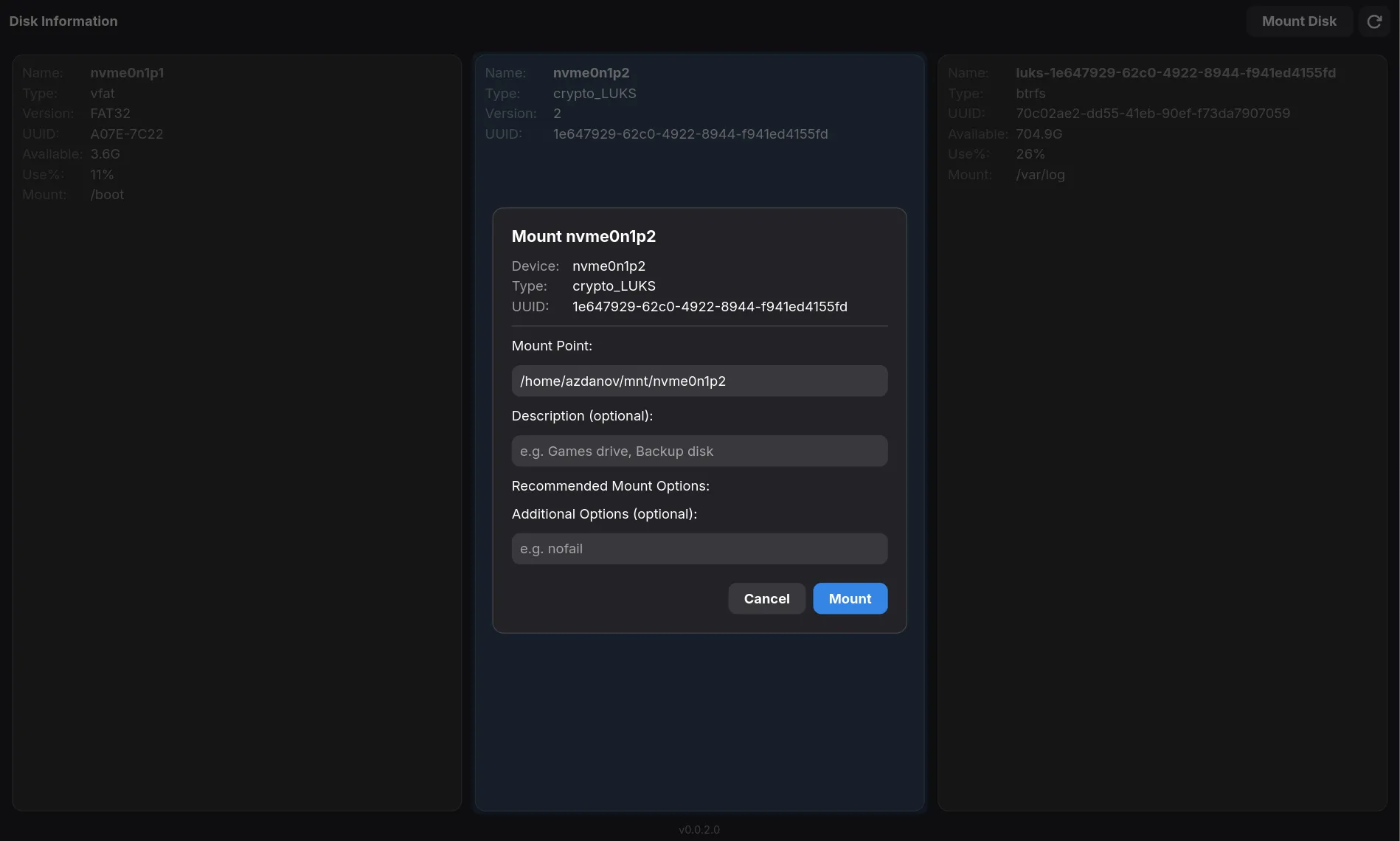
If successful, Pori refreshes the device list and the disk appears as mounted.
Mount Options
Section titled “Mount Options”Pori pre-selects recommended options based on filesystem type:
| Filesystem | Default Options | Notes |
|---|---|---|
ext4 |
defaults |
Standard POSIX permissions |
ntfs |
defaults,uid=1000,gid=1000 |
Placeholders resolved to your actual UID/GID at mount time |
exfat |
defaults,uid=1000,gid=1000 |
Same UID/GID resolution |
udf |
defaults,uid=1000,gid=1000 |
For if you want to game from the same partition on both linux & windows |
Extra Options
Section titled “Extra Options”Add comma-separated options (e.g., noexec,nosuid,ro for read-only, no-execution access). These append to the recommended set.
NTFS Confirmation
Section titled “NTFS Confirmation”When mounting an NTFS disk, Pori shows a compatibility warning before continuing. You can cancel or proceed.
What Pori Creates
Section titled “What Pori Creates”For a mount point like /home/alice/mnt/games, Pori creates:
- Unit file:
/etc/systemd/system/home-alice-mnt-games.mount - Unit content mapping:
What=/dev/disk/by-uuid/<UUID>Where=<mount point you chose>Type=<filesystem type>Options=<selected options>
Pori then runs:
systemctl daemon-reloadsystemctl enable --now <unit>
Best Practices
Section titled “Best Practices”- Use descriptive mount points: /mnt/backup-drive is better than /mnt/sdb1 (which changes between boots).
- Use /mnt or /media: which are often used for mounting. You can also create a new directory like /drives, /games, etc. Don’t do home directory mounts (/home/$USER/mnt) if multiple users need access.
- Label your disks: Use e2label or ntfslabel so Pori shows friendly names, not just /dev/sdb1.
- Check UUID stability: Pori uses /dev/disk/by-uuid/ which survives disk reordering. USB drives should keep consistent UUIDs.
Verify or Troubleshoot
Section titled “Verify or Troubleshoot”- Check unit status:
systemctl status <unit>.mount
- Check logs:
journalctl -u <unit>.mount
- If authentication fails:
- Retry with the correct sudo password.
- If a disk is missing:
- Confirm it appears in
lsblk -f.
- Confirm it appears in
© 2026 Seafoam Labs