
Set Up Polkit for Shelly
The Shelly graphical app (shelly-ui) uses polkit to ask for your password
before it installs, updates, or removes packages, so you never need to launch the app
as root. Under the hood, the app runs the Shelly CLI as an administrator through
pkexec, which is what shows the prompt. When polkit is working, the app shows a
password prompt instead of failing with a permission error.
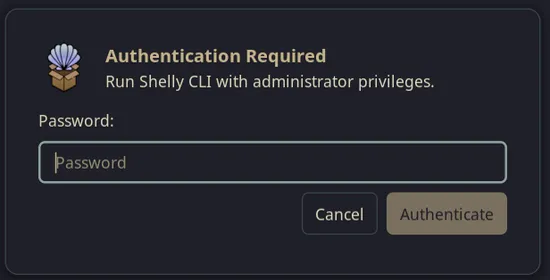
Noctalia Polkit Agent
The command-line tool (shelly) does not need polkit - it elevates with sudo
or doas directly (see Configuration). You only
need this page if you use the graphical app.
Choose a graphical authentication agent
Section titled “Choose a graphical authentication agent”A graphical polkit authentication agent displays the password prompt that Shelly needs. Most full desktop environments, such as KDE Plasma, GNOME, and Xfce, include and start one automatically.
If you use a standalone window manager or compositor, install one of the following
agents. Each package pulls in the lower-level polkit service as a dependency, so you
do not normally need to install polkit separately.
Run these commands in a terminal. The shelly command works here because the CLI
elevates with sudo, independent of polkit.
polkit-gnome- a solid default that works well on Wayland.polkit-kde-agent- matches KDE Plasma.hyprpolkitagent- a default for Hyprland, Sway, and other Wayland compositors.Noctalia polkit agent- a sleek, modern authentication agent included with Noctalia.
shelly -Is polkit-gnomeAdd /usr/lib/polkit-gnome/polkit-gnome-authentication-agent-1 to your desktop or
window-manager autostart configuration.
shelly -Is polkit-kde-agentAdd /usr/lib/polkit-kde-authentication-agent-1 to your desktop or window-manager
autostart configuration.
shelly -Is hyprpolkitagentStart /usr/lib/hyprpolkitagent/hyprpolkitagent from your compositor’s autostart
configuration, or enable its user systemd unit:
systemctl --user enable --now hyprpolkitagentNoctalia includes a polkit agent. Enable it in Settings → Security → Polkit agent instead of installing another agent.
Only run one graphical polkit agent at a time. If you install an agent but do not start it automatically, start it in your graphical session before using Shelly.
Check the polkit service
Section titled “Check the polkit service”The graphical agent is the part most users need to choose; polkit itself is the
background service that receives authorization requests. It is usually started
automatically. Check that it is available with:
systemctl status polkitIf it is not running, start it with:
sudo systemctl start polkitYou can also confirm that an authentication agent is running in your graphical session:
pgrep -af 'polkit'Test it
Section titled “Test it”Open a terminal in your graphical session and run:
pkexec whoamiA password prompt should appear. After entering the password for an administrator account, the command should print:
rootThis test only confirms the generic agent works. Shelly installs its own polkit
policy (com.shellyorg.shelly.pkexec.cli) that lets the graphical app run the
Shelly CLI as an administrator through pkexec. The policy uses
auth_admin_keep for active sessions, so you authenticate once and Shelly can run
several package operations before asking again.
If pkexec whoami works but the graphical app still cannot elevate, trigger
Shelly’s policy directly to narrow the problem down:
pkexec shelly -LsYou should see the same password prompt, followed by a list of your installed standard packages.
If no prompt appears, or the command fails, log out and back in after starting your agent.
Also make sure your account has administrator permissions. On a typical Arch installation,
this means being a member of the wheel group. You can check your membership with groups.
Once the test succeeds, restart Shelly and try the same install, update or any other authenticated operation again.
For agent options, advanced configuration, and troubleshooting, see the ArchWiki polkit guide.